Energy Lens Installation Problems
Problem: you can't find a way to open Energy Lens, even though it has been installed on your computer.
Follow the steps below until the problem is solved:
- Check for the Energy Lens links within Excel
- Check for the Energy Lens desktop and start menu shortcuts
Step 1: check for the Energy Lens links within Excel
Open Excel, and check whether "Energy Lens" is visible in the Excel "Add-ins" menu.
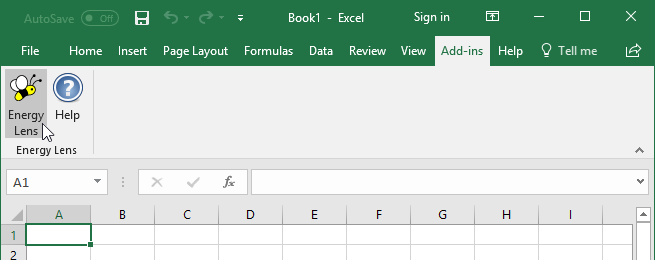
If you can't see it, the simple solution below may fix this.
Solution
Open Energy Lens from the desktop shortcut or the shortcut in the Windows "start" menu. This should make the make the Energy Lens links appear within Excel, ready for future use.
(If the desktop and start menu shortcuts are missing, move on to step 2.)
Step 2 – check for the desktop and start menu shortcuts
If Energy Lens has been installed properly, there should be an "Energy Lens" shortcut on your desktop, and shortcuts in the Windows "start" menu.
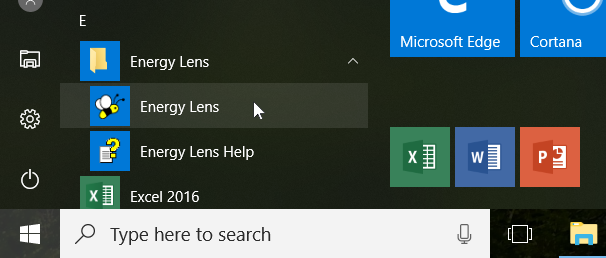
If these are not there, it means that your computer does not have Energy Lens installed on it. Try re-installing Energy Lens and carefully read any pop-up messages you see during the installation process.