Step-by-Step Installation Instructions
Following are step-by-step instructions for installing Energy Lens. If you have not done so already, you will need to download the Energy Lens setup file before following these installation steps.
1. Open the setup file
You should have saved the downloaded file somewhere on your computer. Find the file, and double-click it to open it.
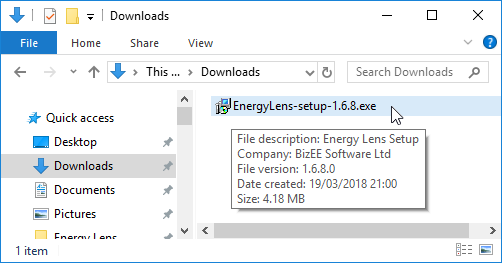
(If you can't find the setup file on your computer, you may need to download it again, making a careful note of where on your computer you save it.)
2. Handle the security warning, if it appears
Depending on your Windows security settings, you may get a security warning:
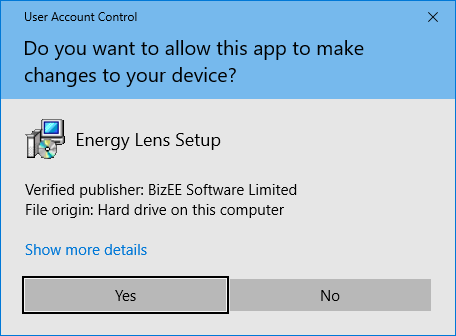
If you do get a security warning like the one shown above, click the "Yes" button to continue with the installation.
3. Follow the steps of the setup wizard
The Energy Lens setup wizard should automatically start. The first screen is shown below:
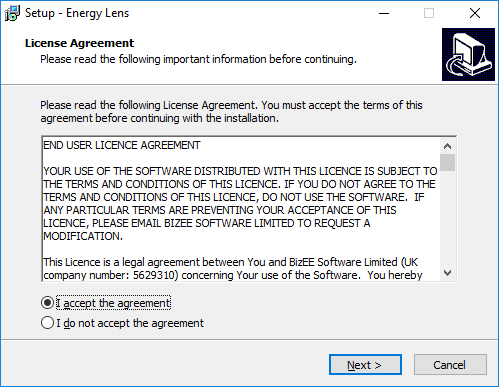
Click "Next >" to continue through each stage of the wizard. Once you have reached the end, you should see the following screen:
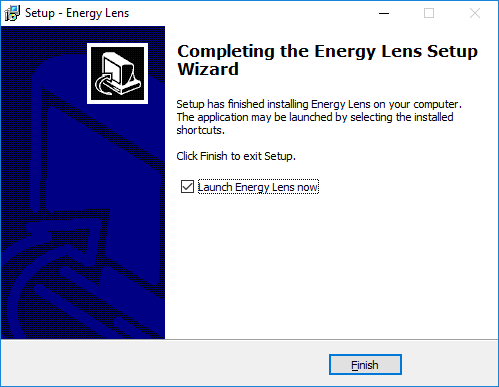
Click the "Finish" button to complete the installation.
4. Getting started with Energy Lens
The last page of the installation wizard gives you the option of automatically launching Energy Lens (see the screenshot above). If you unchecked this option before clicking the "Finish" button, take a look at the getting started instructions: they explain how to open Energy Lens and how to access the help-files.
Other resources
To figure out how to use the software, our Energy Lens videos are a good starting point. You might also find it useful to look at some examples of the sorts of energy-usage charts that Energy Lens can help you to make.
We've also written a number of articles that you might find useful. For example:
- Our article on effective energy management gives a good introduction to what energy management is, and how to get started with it.
- Our article on raising awareness of energy consumption can help you to figure out the best strategy for encouraging people to use less energy in your organization (or an organization that you're advising).
- Our article on finding building energy waste explains how the charts that Energy Lens creates contain lots of useful clues about when and where energy is being wasted in your building(s).