How to Update and Repair Excel
If an Excel add-in is acting peculiarly (or not at all), it's often because Excel is broken in some way. Updating and repairing Excel will often fix things.
Follow the steps below – first update, then repair. It's best to reboot your computer before starting an update or repair, to reduce the chances of a running program preventing files from being repaired or replaced.
Updating Excel
This should be the same process as updating Windows, as Microsoft has merged the two:
- Make sure that Excel is closed (ideally you will have rebooted your computer so that Excel hasn't even been opened yet in your current Windows session).
- Visit the Microsoft Update page for instructions on how to run Windows update on your particular machine (typically via "Windows Update" in the Windows Control Panel).
- Follow through the instructions until your version of Office has been updated with all the latests patches and service packs (e.g. SP1, SP2, etc.).
Repairing Excel 2016, 2013, 2010 or 2007
The instructions for this depend on which version of Windows you're using:
Windows 10
- Click on the Windows "start" icon (bottom-left corner of your screen).
- Click on "Settings". The "Windows Settings" window should appear.
- Click on "Apps". The "Apps and Features" window containing a list of your installed programs should appear.
- Select "Microsoft Office" (or "Microsoft Excel" if you do not have the full Office installation).
- Click "Modify".
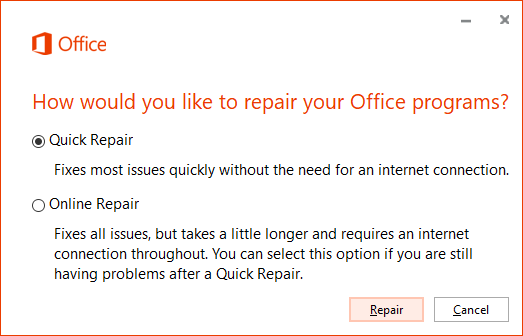
- Choose from "Quick Repair" or "Online Repair".
Windows 8 / 8.1
- Right-click on the Windows "start" icon (bottom-left corner of your screen) to open the "Start Context Menu". (If you don't have the Windows 8.1 update, hover the cursor in the bottom-left corner of the screen until a small image of the "start" screen appears, then right-click on the icon.)
- Select "Programs and Features". The "Programs and Features" window containing a list of your installed programs should appear.
- Select "Microsoft Office" (or "Microsoft Excel" if you do not have the full Office installation).
- Click "Change".
- Choose from "Quick Repair" or "Online Repair".
Windows 7 and earlier
- Right-click on the Windows "start" menu (bottom-left corner of your screen).
- Click on "Control Panel". The "Control Panel" window should appear.
- Double click on "Programs and Features" (or "Add or Remove Programs" on Windows XP). A window containing a list of your installed programs should appear.
- Select "Microsoft Office" (or "Microsoft Excel" if you do not have the full Office installation).
- Click "Change".
- Click "Repair".
Running Detect and Repair for Excel 2003 or Excel 2002 (XP)
- Open Excel, and go to "Help" (at the top of the Excel window, next to "File", "Edit", "View", "Insert" etc.).
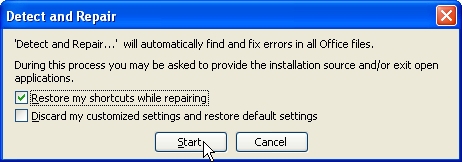
- Select "Detect and Repair..." (see screenshot).
- Make sure to select "Restore my shortcuts while repairing".
- Click "Start" to begin the Detect and Repair process.